
English
Serial debugging
Panes
The + button in the toolbar adds another monitor pane. Each pane keeps its own port, baud rate, line ending and send history.
- You can watch two boards at the same time and send commands to each of them.
- Closing a pane releases the serial port it was using.
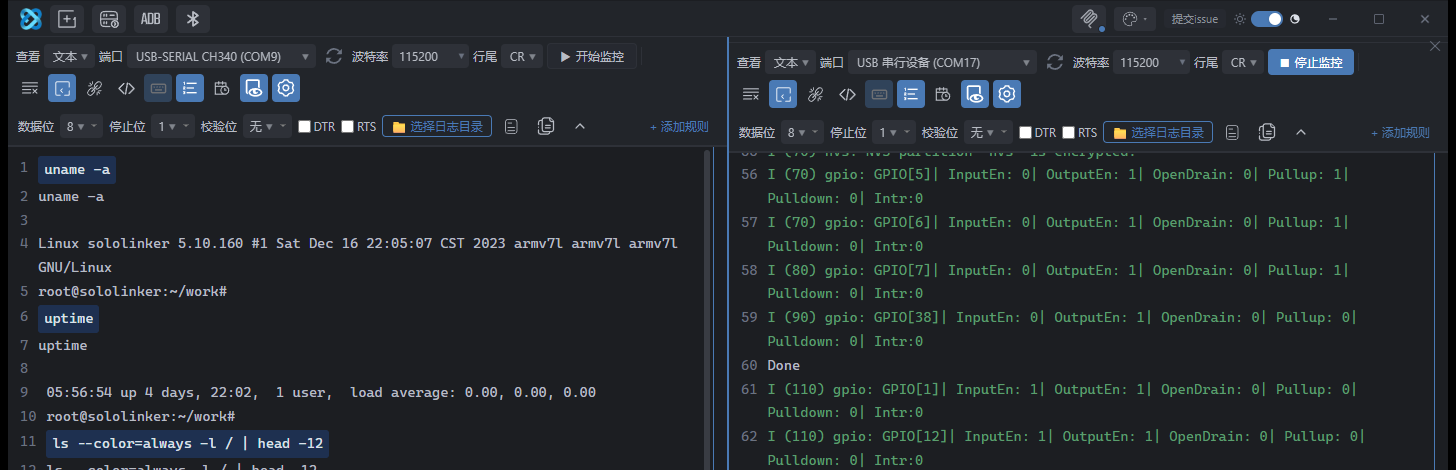
Toolbar
| Control | Purpose |
|---|---|
| View mode | Display output as text or HEX |
| Port | Choose the COM port; the list refreshes when devices are plugged in or removed |
| Baud rate | Common values plus a custom input |
| Line ending | Append \r, \n or \r\n when sending |
| Start / Stop monitoring | Connect or disconnect |
| Gear | Data bits, stop bits, parity, DTR/RTS |
| Clear / Save log | Clear the output area, or export the log to a file |
The icon buttons include line numbers, timestamps, message echo, terminal mode and line buffering.
Sending
Text mode sends UTF-8. HEX mode sends raw bytes, for example AA 55 01.
The line ending follows the toolbar selection. For AT commands, turn on line buffering and use \r\n; see Terminal mode.
Each pane keeps the last 50 sent lines. Use ↑ and ↓ to browse them and Esc to close the history.
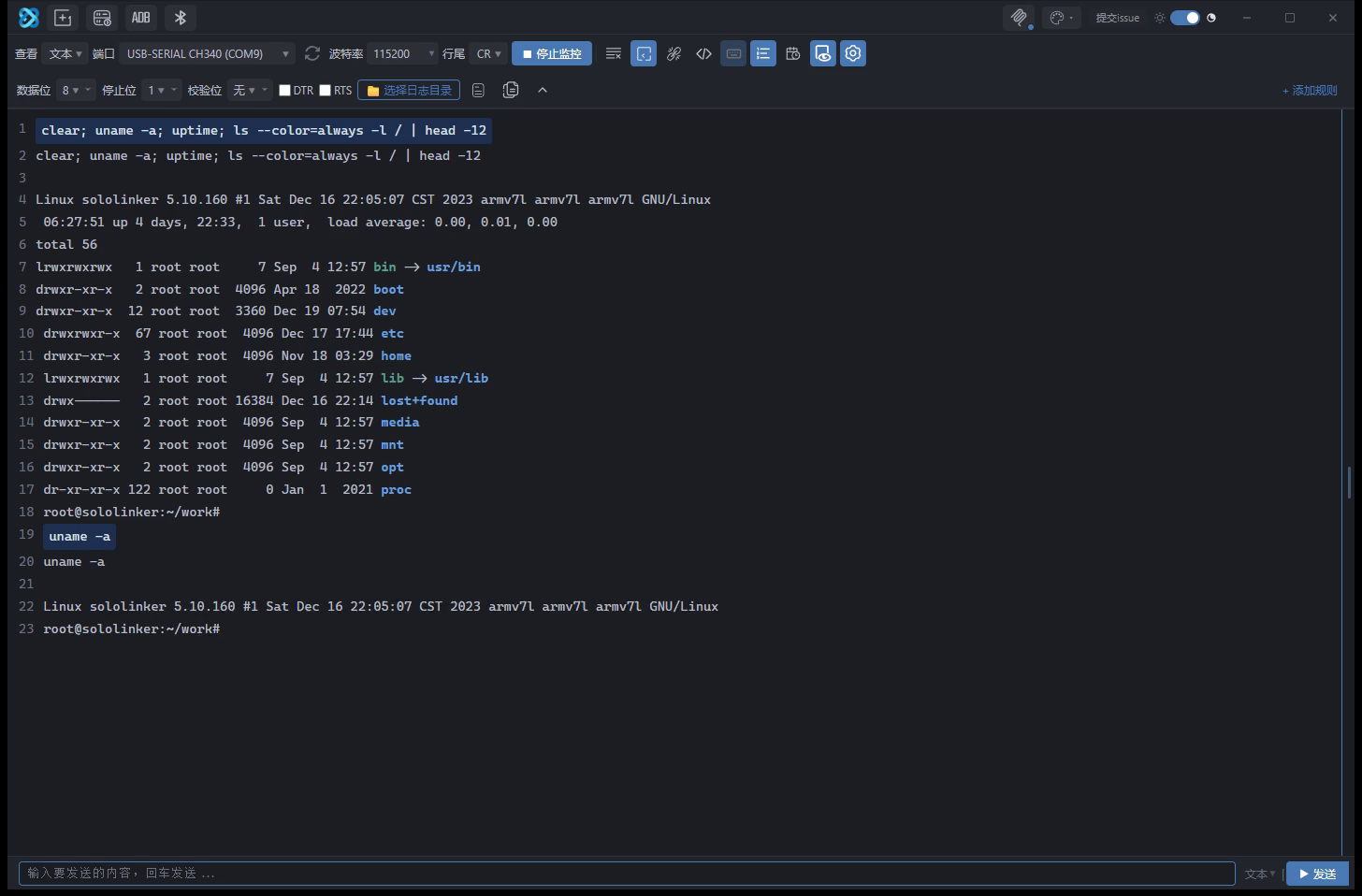
Logs and cache
Clearing the display does not remove the session cache that has already been written to disk.
While a serial port is open, the app caches the session automatically:
%APPDATA%\seahi-serial\log-cache\session-<timestamp>-<port>.logThe last 10 sessions are kept; the oldest file is removed when a new one is created. Use Save log for a permanent copy; the app will not delete files you saved manually.
Reconnecting
If the serial port disconnects, the app tries to reconnect. The button shows Waiting for connection and the port status indicator changes colour. The reconnection process is not written to the log window, so the output area only contains device data.
Workflows
Under More settings → Workflows you can create rules that react to received data: send data, toggle DTR/RTS, or save the log.
Rules can be enabled individually. When a rule fires, the action is written to the workflow log channel so you can check what was sent and when.
Enabling a rule allows the app to write to the device automatically. The UI asks for confirmation, and MCP calls must include confirm:true.
Themes
The title bar offers 6 styles, each with a light and dark variant, for 12 themes in total. Switching a theme updates both the normal output view and terminal mode.