
English
Bluetooth
Open the Bluetooth panel and click Start scan to look for nearby BLE devices. The list shows device names, MAC addresses and RSSI values.
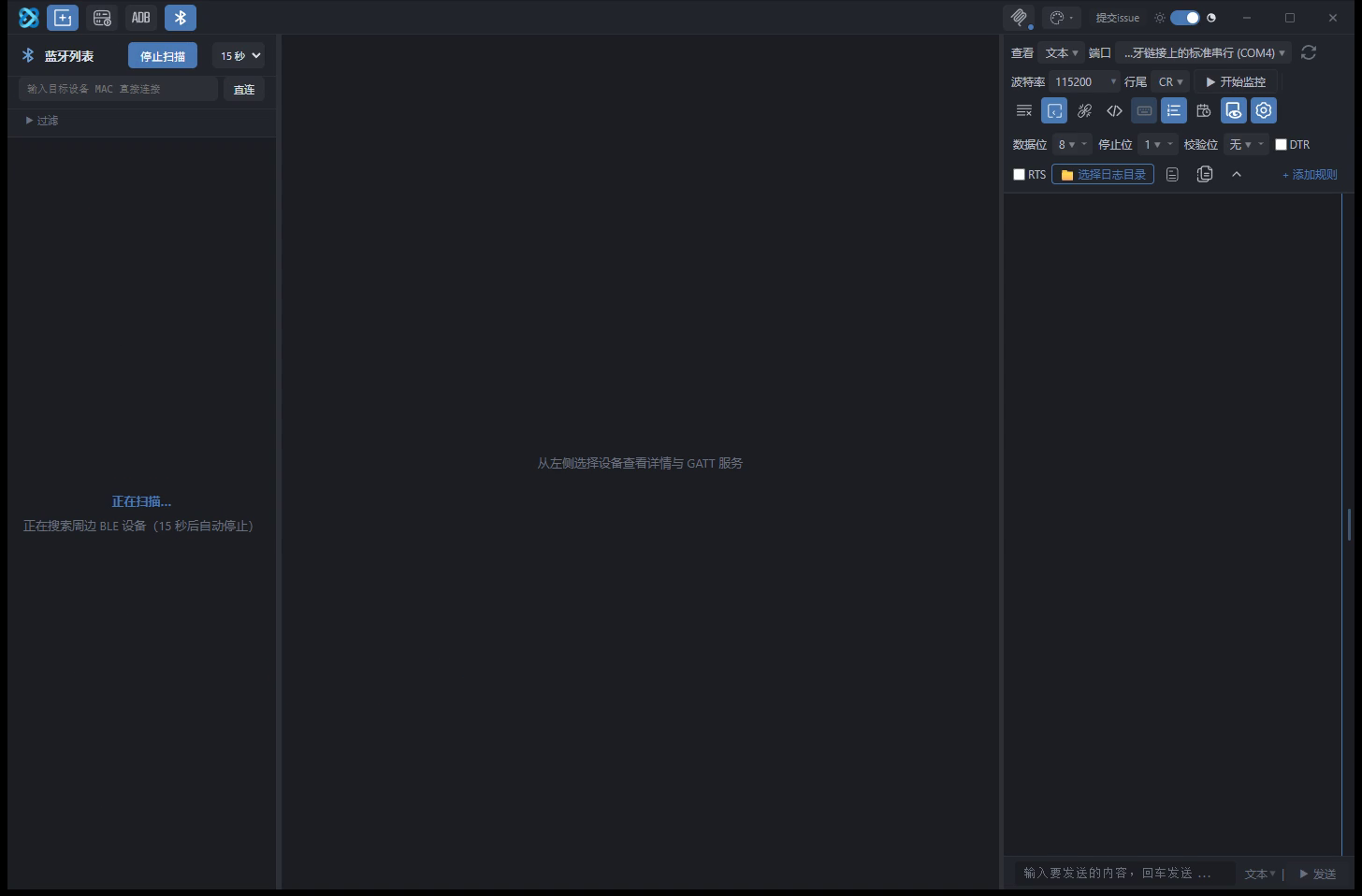
Scanning and connecting
Click a device card to connect. Once connected, the GATT service tree appears on the right.
If a scan is running when a connection starts, the scan stops automatically. Scanning again while connected is allowed, for example to look for another device; a new connection also stops the scan.
Each scan has a fixed duration and stops automatically when it expires.
Connecting by MAC address
Devices that have been paired with Windows or connected by another host often stop advertising, so they never appear in the scan list. Use Connect by MAC to enter the address directly, without relying on advertising.
GATT tree
Service and characteristic names come from the Bluetooth SIG UUID tables, which include 78 services and 512 characteristics. Unknown UUIDs are shown as Custom Service; the app does not guess names.
From the service tree you can read characteristics, write characteristics and descriptors, and subscribe to notifications and indications. Raw bytes are shown in HEX, and text characteristics also show a readable value.
Time service
The app recognises the Current Time Service:
| Characteristic | Content |
|---|---|
0x2A2B | Current time |
0x2A0F | Time zone and daylight saving time |
0x2A14 | Time source, accuracy and time since last update |
When these values are read or received, the data log adds a readable line after the raw HEX, for example:
→ 2026-12-17T15:45:58.500Z (Thursday) · device clock is ahead of this computer …After subscribing, you can watch the device clock change.
If a field was not provided, is out of range or uses a reserved value, the UI shows “not provided”. 0 is a valid value and is never used to mean “unknown”.
Device names
After a connection is established, Windows overwrites the device name with a name cached by the system. That name may differ from what the device advertises and may never have been used by the device itself.
The UI shows the advertised name; the system name is only used when the device does not advertise a name at all.
To check the name a device reports, read the Device Name characteristic (0x2A00) under the 0x1800 service.
Pairing
Devices that require bonding use WinRT pairing. Windows shows a system confirmation dialog during pairing, and it must be confirmed manually. The app cannot do this for you, so keep the window open until pairing finishes.
Peripheral mode
BLE peripheral mode has been removed. The adapter reports support for the peripheral role, but advertising could not be started in testing, so the feature was removed rather than leaving an entry that does not work. Only the central role is supported.